
If you’re logged in properly, you should see a dark toolbar at the top. This will lead you to the new backend.
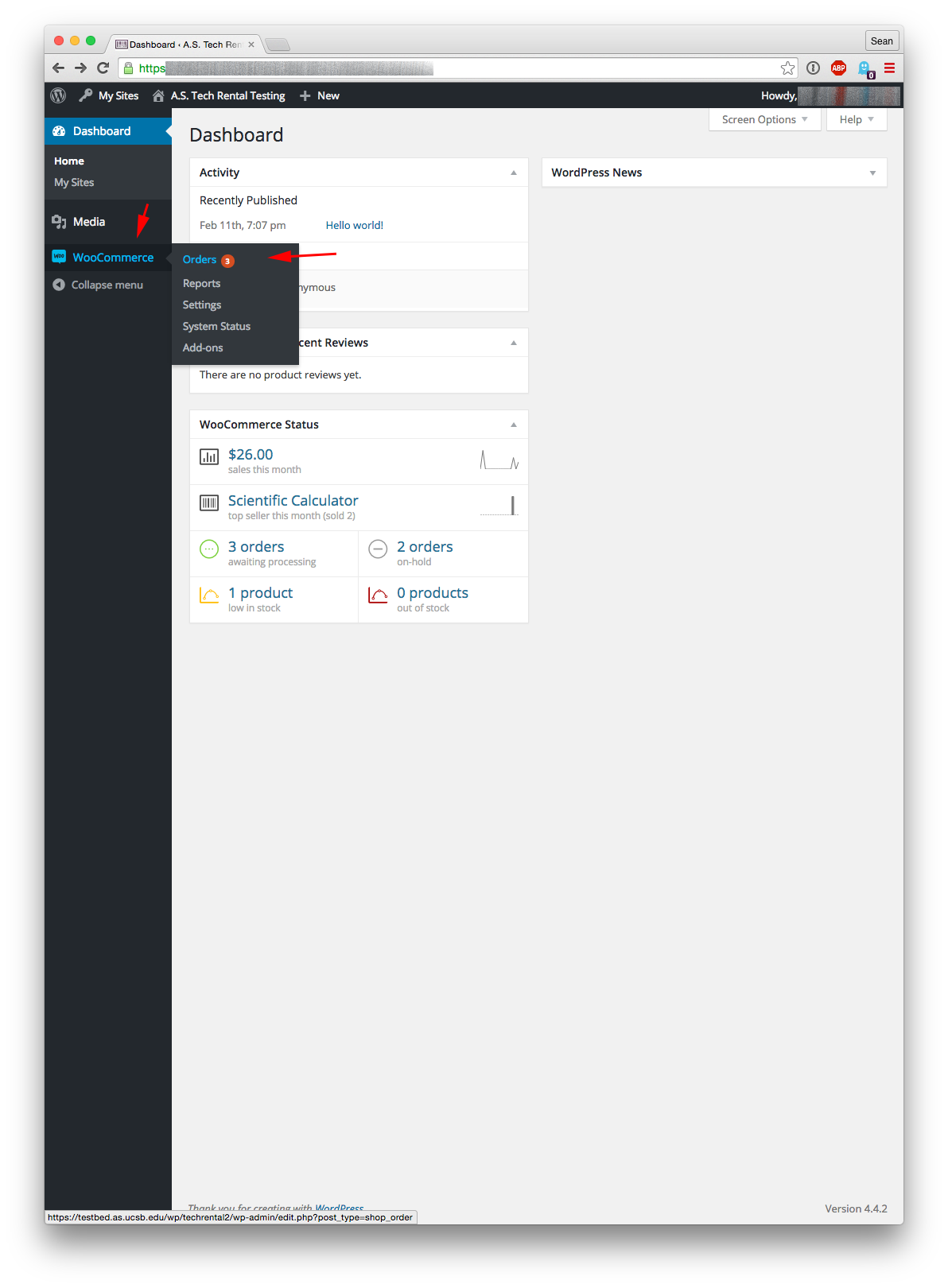
It will look just like this. Go to WooCommerce :: Orders to view all the orders. This is where you’ll spend your time.
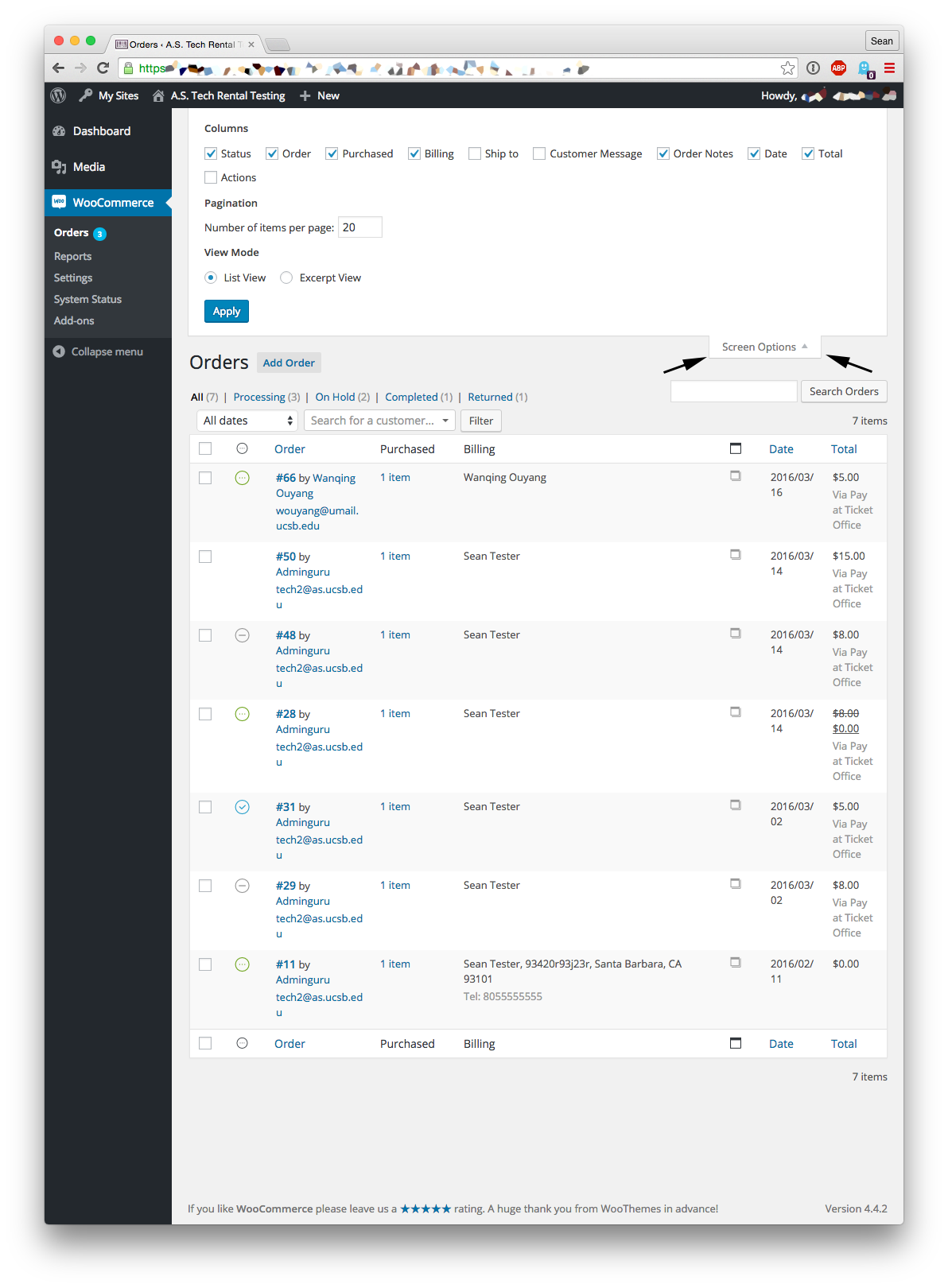
You’ll need to adjust the “Screen Options” first. Make it match the ones above (you should only have to do this once on each computer that you use). This will enable you to see the customer’s name on this first screen. Also, if you click on where it says “1 item”, it will show you what they ordered.
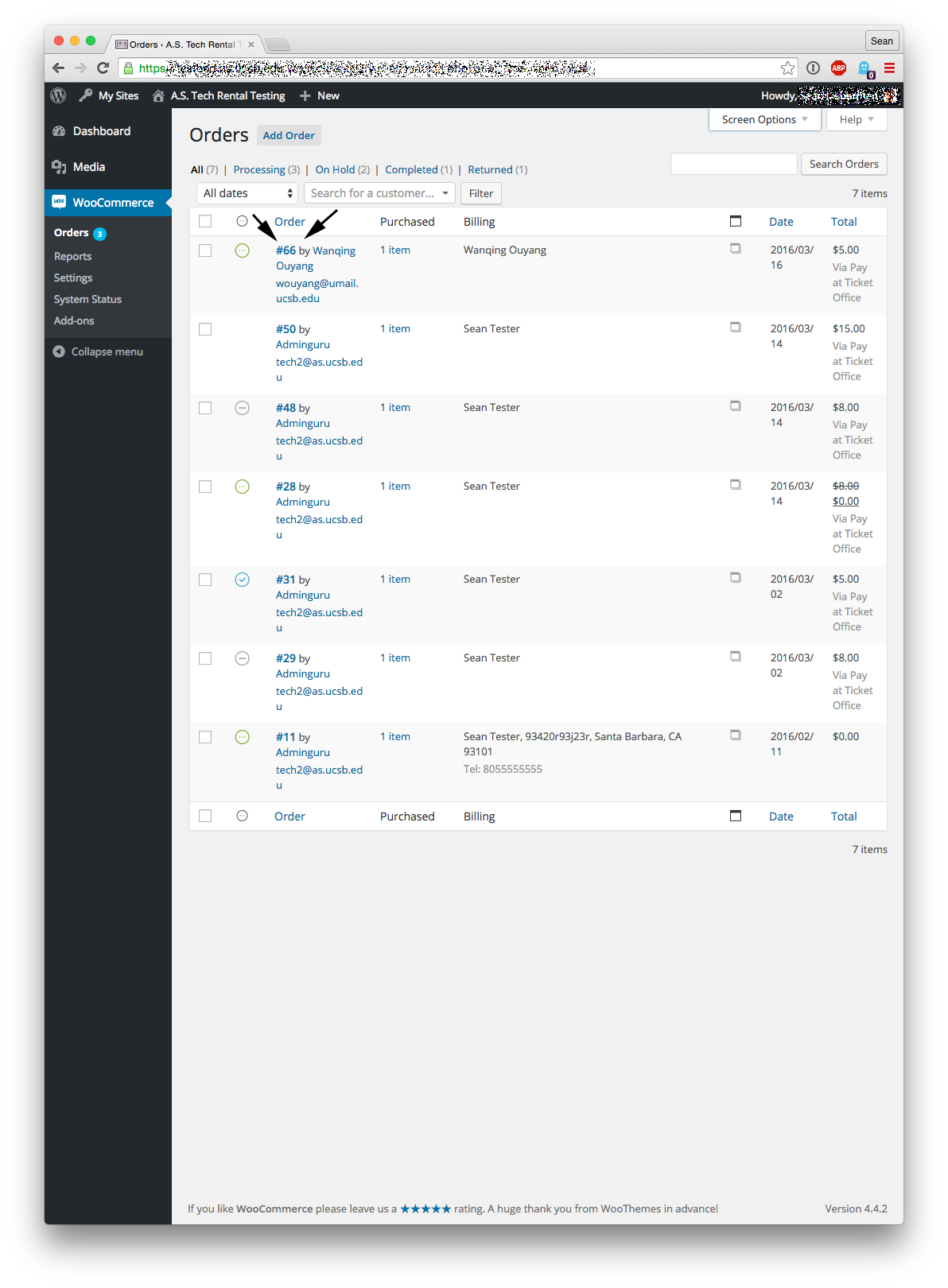
Now click on the number (like #66 above) to view the full details of the order. This initial screen only shows the number of orders, the name of the person, the date, and the final price.
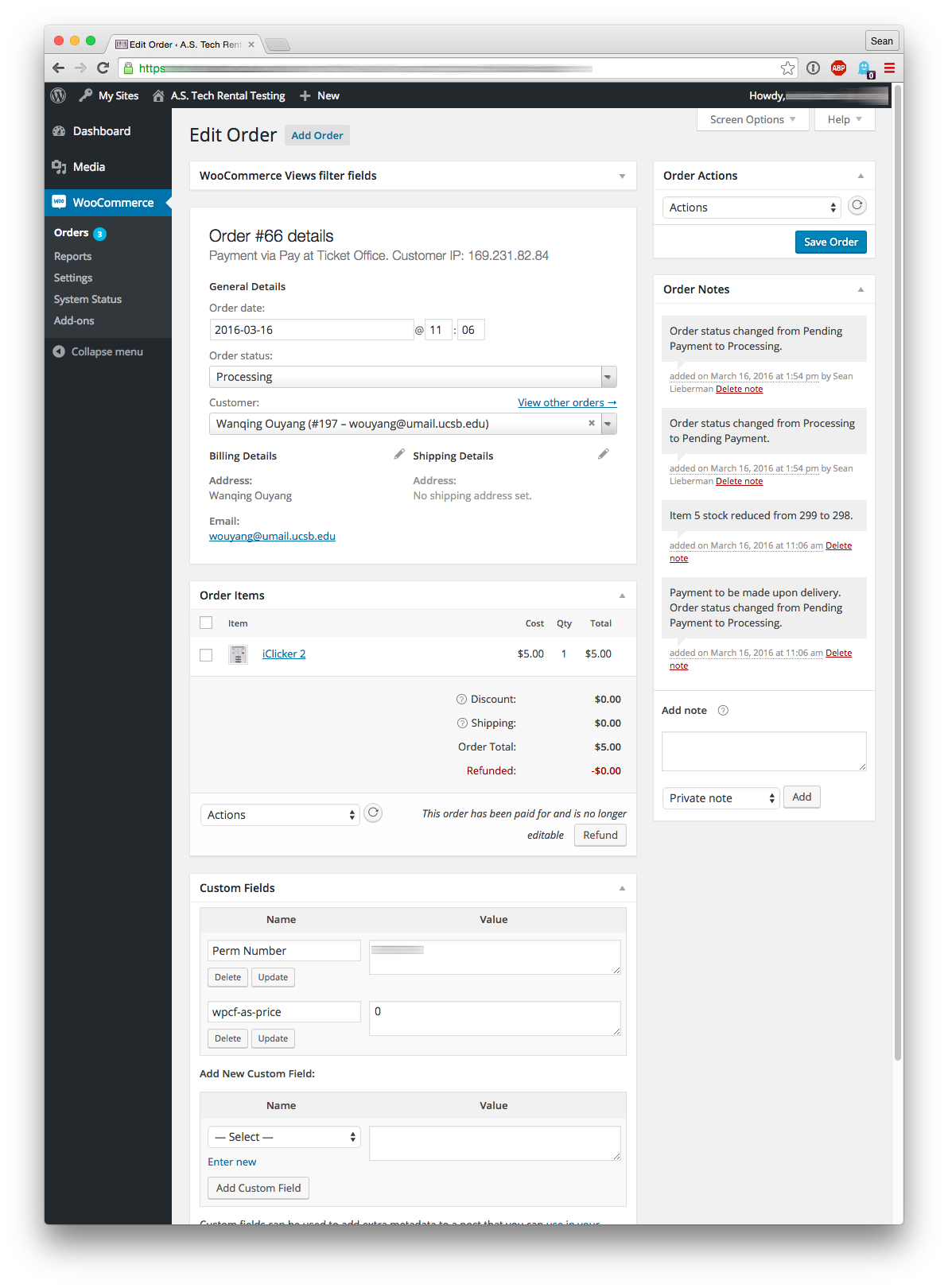
This is the full order page. It includes what was ordered, details about the person ordering (including their perm), and notes.
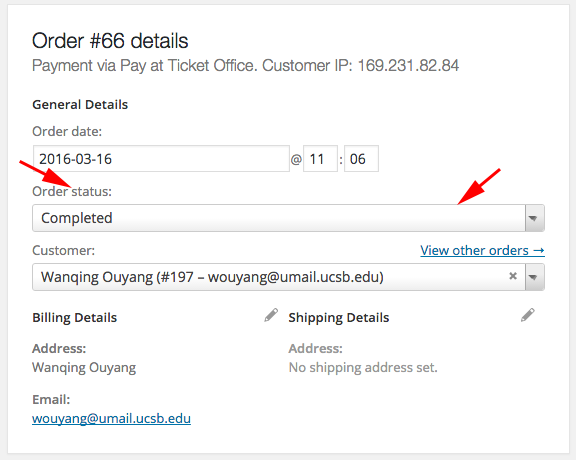
When a customer comes by to pick up their order (and fill out the paperwork and pay), you’re going to want to change their Order Status.
Here’s the breakdown:
Processing – This is the default. This means they’ve ordered online but not done anything else.
Completed – Use this after they pay and pick up their order.
Cancelled – Only use this if they never pick up the item. This increases the inventory by one (since their order is nullified).
Returned – For when you check them back in. This also increases the inventory by one.
Lost – If the user never returns the item, mark it as lost (the inventory doesn’t go back up).
Damaged – Basically the same as Lost. Make a note of how it is damaged and if the user was charged.
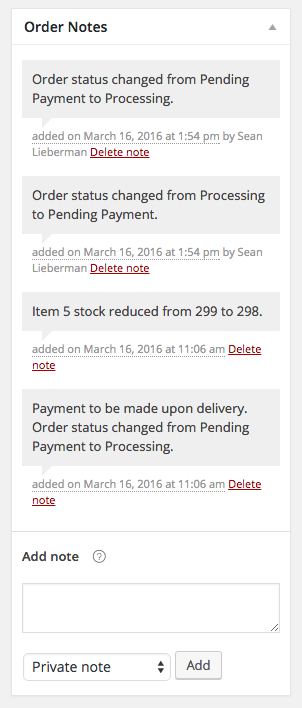
For anything that doesn’t fit, make a note. The private notes aren’t only seen on the backend. You can also send a note to the user (probably to ask them to bring it back), but we won’t get into that right now.
For example: The Serial number of the device rented out should be added as a private note.
There will likely be some crossover with the old system for a few weeks. If all of the iClickers are returned before the new quarter begins, then we won’t have this problem. Otherwise you’ll need to use this new system for checking everything out, and the old system for checking those old ones in. Questions? tech@as.ucsb.edu